

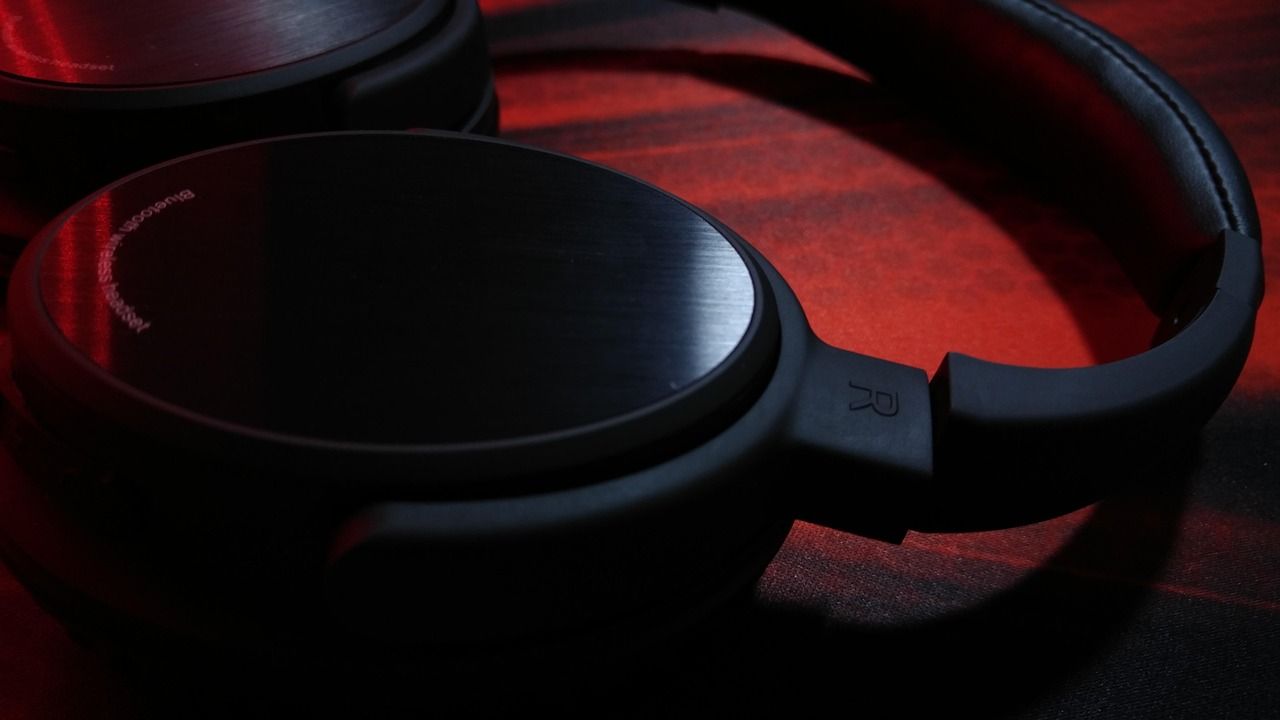
The Rise of Wireless Audio in India
In recent years, the Indian audio market has seen a massive shift. Walk into any metro coach in Delhi or a local train in Mumbai, and you will notice something missing: tangled wires. From affordable homegrown brands like boAt and Noise to global giants like Sony and Bose, Bluetooth headphones have become the standard for music lovers, commuters, and remote workers alike. However, for many users, the initial setup process can be slightly confusing. Whether you just bought your first pair of True Wireless Stereo (TWS) earbuds or a premium over-ear set, knowing how to connect Bluetooth headphones correctly is essential for a seamless listening experience.
In this comprehensive guide, we will walk you through the step-by-step process of connecting your wireless headphones to various devices, including Android phones, iPhones, Windows PCs, and even Smart TVs. We will also cover common troubleshooting tips to help you resolve connection issues quickly.
Understanding Pairing Mode
Before you attempt to connect your headphones to any device, you must understand the concept of pairing mode. Bluetooth devices do not just broadcast their signal constantly for security and battery reasons. You must manually tell the headphones to look for a new connection. This state is known as pairing mode.
For most popular Indian brands like Realme, OnePlus, or Boult, entering pairing mode usually involves one of the following methods:
- Holding the power button for 5 to 7 seconds until the indicator light starts flashing (usually red and blue).
- Opening the lid of the charging case and holding a dedicated pairing button on the case.
- Taking the earbuds out of the case; many modern TWS models enter pairing mode automatically if they are not connected to a previously known device.
How to Connect Bluetooth Headphones to an Android Phone
Android is the most widely used operating system in India, and fortunately, the pairing process is quite straightforward. While different brands like Samsung, Xiaomi, and Vivo have slightly different skins, the core steps remain the same.
- Go to the Settings app on your smartphone.
- Tap on Connections or Connected Devices.
- Select Bluetooth and ensure the toggle is turned On.
- Put your headphones into pairing mode as described earlier.
- Tap on Pair new device or Scan.
- Look for your headphones' name in the list of available devices. For example, it might show up as boAt Rockerz 450 or Sony WH-1000XM5.
- Tap the device name and confirm the pairing request if a pop-up appears.
Once connected, your phone will remember the headphones and reconnect automatically whenever Bluetooth is enabled on both devices.
How to Connect Bluetooth Headphones to an iPhone (iOS)
Apple devices are known for their ecosystem, but they work perfectly fine with non-Apple Bluetooth headphones as well. If you are using AirPods, the process is near-instant, but for other brands, follow these steps:
- Open the Settings app on your iPhone.
- Tap on Bluetooth and make sure the switch is green (On).
- Put your headphones into pairing mode.
- Under the Other Devices section, your headphones should appear.
- Tap the name of your headphones to finish the connection.
If you are using an iPhone, you might see a battery widget on your home screen that shows the exact percentage of your connected headphones, which is very helpful for planning your day.
Connecting to a Windows PC or Laptop
With the rise of work-from-home and online classes in India, many people need to connect their Bluetooth headphones to their laptops for Zoom or Google Meet calls. Here is how you do it on Windows 10 and Windows 11:
- Click on the Start menu and select the Settings gear icon.
- Navigate to Bluetooth & devices (Windows 11) or Devices (Windows 10).
- Ensure the Bluetooth toggle is turned On.
- Click on the Add device button (usually a large plus icon).
- In the pop-up window, choose Bluetooth.
- Put your headphones in pairing mode and wait for them to appear in the list.
- Click on the headphone name to connect.
Pro tip: If your headphones are connected but you cannot hear anything, click on the sound icon in the bottom right corner of your taskbar and ensure that your Bluetooth headphones are selected as the default playback device.
Connecting to a Mac or MacBook
For creative professionals in India using MacBooks, the process is equally simple:
- Click the Apple menu in the top left corner and choose System Settings or System Preferences.
- Click on Bluetooth in the sidebar.
- Make sure Bluetooth is on.
- Put your headphones in pairing mode.
- Locate your headphones in the list of nearby devices and click Connect.
How to Connect to a Smart TV
Watching movies or IPL matches late at night without disturbing the rest of the family is a common scenario. Most modern Android TVs and Fire TV Sticks support Bluetooth audio.
- Navigate to the Settings menu on your TV using the remote.
- Look for Remotes & Accessories or Sound settings.
- Select Add Accessory or Pair Bluetooth Device.
- Put your headphones in pairing mode.
- Select your headphones from the TV screen when they appear.
Note that some older TVs might have a slight audio lag when using Bluetooth. If you experience this, check if your TV has a Game Mode or Audio Sync setting to minimize the delay.
Troubleshooting Common Connection Issues
Sometimes, despite following all the steps, your headphones might refuse to connect. Here are some common solutions tailored for the Indian environment:
Check for Nearby Interference
India is a densely populated country, and in urban areas, there are hundreds of signals (Wi-Fi, other Bluetooth devices, microwaves) that can interfere with your connection. Try moving away from other electronics or resetting your Bluetooth toggle.
The 10-Second Reset
If your headphones are acting glitchy, a factory reset usually helps. For most neckbands and TWS, you can hold the volume up and down buttons simultaneously for 10 seconds while the device is on. This clears the memory of previously paired devices.
Battery Levels
Bluetooth requires a certain amount of power to maintain a stable handshake between devices. If your headphones are below 10% battery, they might fail to pair or keep disconnecting. Charge them for at least 20 minutes and try again.
Forget and Re-pair
If you have previously connected the headphones but they are no longer working, go to your Bluetooth settings, find the device, and select Forget or Unpair. Then, restart the entire pairing process from scratch.
Maintaining Your Bluetooth Headphones
In India, dust and humidity can affect the longevity of your electronic gadgets. To ensure your Bluetooth headphones stay in good condition and maintain a strong connection:
- Keep the charging contacts clean: For TWS earbuds, use a dry cotton swab to clean the gold pins inside the case. Sweat and earwax can prevent the buds from entering pairing mode correctly.
- Firmware Updates: Many brands like Sony, JBL, and even boAt have dedicated apps. Always check for firmware updates as they often fix connectivity bugs.
- Avoid Extreme Heat: Leaving your headphones in a parked car during an Indian summer can damage the battery and the Bluetooth chip.
Conclusion
Learning how to connect Bluetooth headphones is a simple skill that opens up a world of convenience. Whether you are using a budget-friendly pair for your daily commute or high-end noise-canceling headphones for deep focus, the steps are largely universal. By understanding pairing mode and knowing where the settings are on your specific device, you can enjoy your favorite music, podcasts, and movies without the hassle of wires. Remember to keep your devices charged and clean, and you will have a reliable audio companion for years to come.
Why is my phone not finding my Bluetooth headphones?
The most common reason is that the headphones are not in pairing mode. Even if they are turned on, they must be in the specific flashing-light state to be discoverable. Also, ensure your headphones are not already connected to another device nearby, like a laptop or a family member's phone.
Can I connect my Bluetooth headphones to two devices at the same time?
This feature is called Multipoint Connection. High-end headphones from brands like Sony and Jabra support this, allowing you to connect to both a phone and a laptop simultaneously. However, most budget and mid-range headphones in India do not support this and can only connect to one device at a time.
Why does the audio lag when I am playing games?
Bluetooth has a slight inherent delay called latency. While fine for music, it can be noticeable in fast-paced games like BGMI. To fix this, look for headphones with a Low Latency Mode or Gaming Mode, which reduces the delay at the cost of a slight reduction in battery life.
How do I reset my Bluetooth headphones if they wont pair?
While the process varies by brand, most headphones can be reset by holding the power button for 10-15 seconds while they are off, or by holding the pairing button on the TWS case for a long duration until the LEDs flash a specific color, usually white or red.


